Centerm Computers
Truck Laptops
- Get laptop number from cover or Windows login username
- e.g. LT05 would be 05, LT36 would be 36
- User: Foreman
- Password: DPFmLTnn (where nn is your laptop number, e.g. DPFmLT05) or
- Password: DPFmLT0nn (e.g. DPFmLT0005) or
Navis
- User: work number
- Password: work number
Centerm Ship
General
- Order paperwork according to flowsheet
- Make sure you identify and have all the loadback and discharge paperwork
- On twin paperwork, identify back and front bays (aft/fwd)
- Renumber cells according to the number that are open/exposed below deck
- Add reminders for lid and hatchtender warnings
- Highlight all reefers
- Colour loadback by block
- Make note of any twin lifts with cones on only one can
- Periodically double check the bay that you are loading matches the bay on your paperwork!
Warnings
- Five can warning for hatchtender before loading or discharging any 20's below deck
- Five can warning for ship foreman before uncovering or covering any lids
- ALL CALL channel "Attention everyone, crane 3 is uncovering 2 lids, heads up!"
Discharge
- Confirm with ship foreman reefers are unplugged before discharging
- Especially watch for reefers below deck!
- Tell gantry to avoid reefers until we get confirmation. Let them know when they're getting close
- Orange trailers can take only a single 20' tank to middle of the trailer; have them line up for a 40'
- Single 20' tanks to the back of gray trailers; two 20' tanks must be tight to the back and tight to the front
- If a bombcart takes two single 20's, one goes tight to the back of the trailer and one goes tight to the front
- Always type in back can first
- All FLD (failed) cans have the bombcart wait out of the way and they will get a destination in a few minutes
Loadback
- Have bombcarts pass each other or hold back so the gantry doesn't have to fill holes on deck
- If above deck is, for example, 14 wide and a can is already in cell 12, load cell 13 then cell 14 so the gantry doesn't have to fill any holes
- If above deck, load inshore 20's last so gantry doesn't have to go up and over. Call mobile if flowsheet needs to be changed
- Always watch stackers on 45' containers!
- Be clear to your gantry and repeat how wide the bay is on each call if you are loading cells close to the offshore
- When saying numbers in the teens, repeat each number individually (e.g. "Fourteen one four; Fifteen one five")
- "We have 10 open cells, let's fill up cell 7, then fill up 6, then 5 all the way to 1"
- "We are 14 one four wide, let's do 5 passes from cells 13 one three all the way to 2"
- "Let's just do all the three-highs offshore to inshore"
- Underline the container number if you have sent a bombcart to pickup that container or given that bombcart instructions for stackers, cradle the container number if you see the container on a bombcart, finally close the cradle (box the container number) when the container is physcially being loaded onto the ship
Centerm Gopher
General
- Channel EQ CONT or YARD
- Ask EC for urgent blocks to update
- Scale is at the west end of J lane
Radio Procedure
- Be smart and don't bother with any block with lots of equipment around
- Park directly in front of block in the truck lane to block access
- Radio any RTGs or 40 tons around and let them know you will be in the block
- Equipment is usually on the EQ CONT, YARD, or GATE channels
- Radio the foreman on the EQ CONT, YARD, or GATE channel and let them know you will be in the block
- Radio everyone once you are clear
NAVIS
- Login: worknumber/worknumber
- Yard > Plan View for map
- Yard > Check Yard Stowage
- Look for "Floating in current time frame"
- Yard > Non-Specific Stow
- Always make sure top left box says 0 and not 1 or higher
- Always make sure blocks are Display > Current
- To move around containers within a block, use the green checkmark
- Always make sure you select the white arrow after using the green checkmark
- Yard > Display Yard Area... to update a block
Writing up Containers
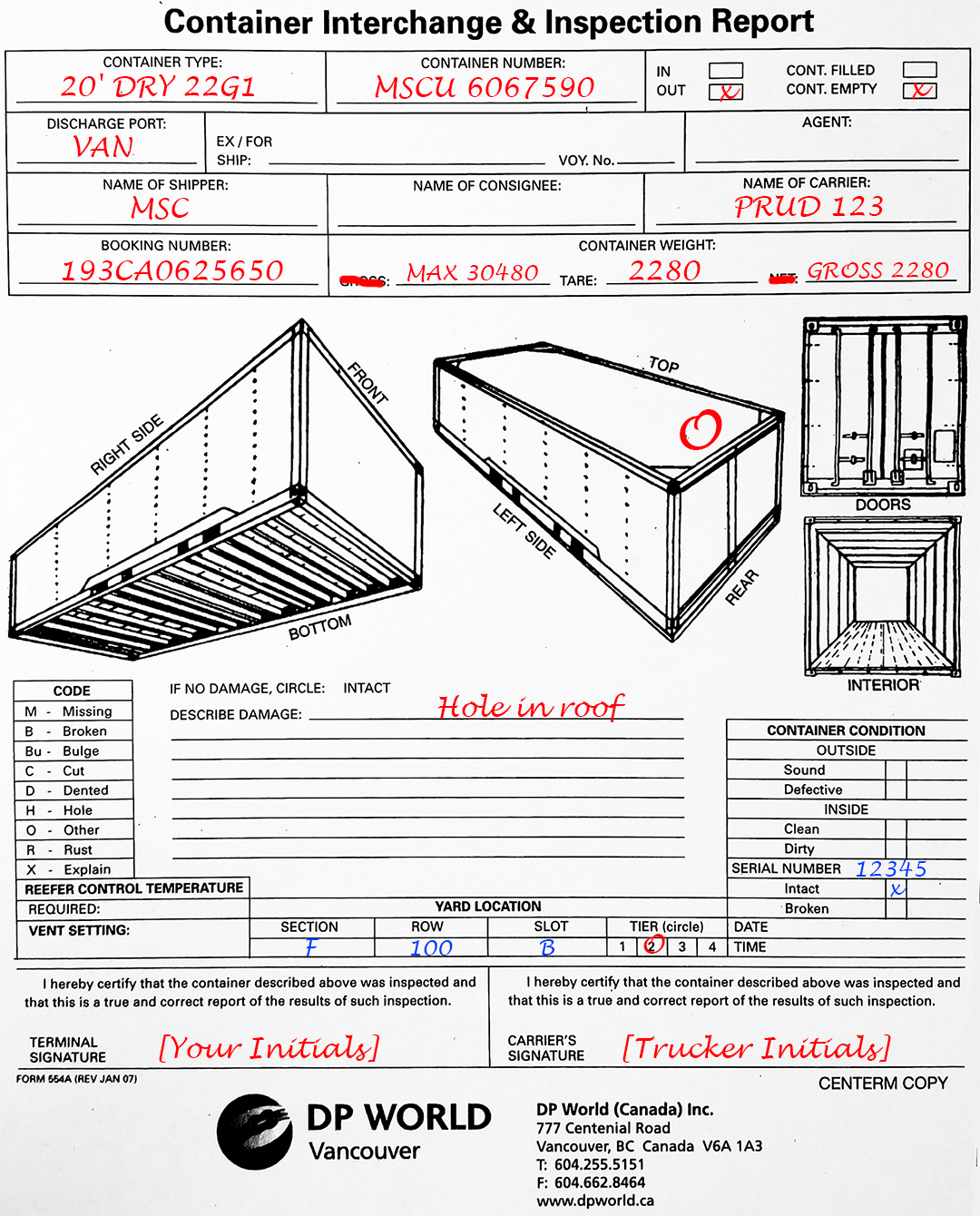
Example Interchange
- Get book from Gopher truck or Gate Office
- Container type: 40' DRY 9'6" / 45G1
- Container number: Prefix and seven digits
- Max Gross/Tare/Gross
- Circle any damage and write in comments
- If on a truck:
- In or out
- Cont. filled or Cont. empty
- Discharge port
- Name of Shipper
- Booking number
- Sign at bottom
- Give pink copy to trucker
- Fill in seal number as Serial Number if applicable
- Fill in yard location if applicable
Centerm Canopy (obsolete)
General
- Channel GATE
- Get handheld and radio from Gate Office
- Switch walkway lights ON
Internet Explorer
- Select Address from dropdown (10.42.3.3:10080)
- Login: canopy/canopy
- Enter container number
- ENTER
- Check if doors closed
- Check bulges or damge. Call foreman if any
- Check any placards and check box on handheld
- TDG papers go in box
- Enter seals on handheld
- ENTER
- Chaulk back and side of can
Centerm Gate (obsolete)
General
- Windows login: consN/Vancouver2010
- DPWorldClerk for camera
XPS-N (NAVIS)
- Login: worknumber/worknumber
- Fail! window > Display > Composite
- Any speedgate block > Yard > Display yard block... > Display > Current
N4 Prod
- Login: worknumber/worknumber
- Gate > IN_GATE > Open all tabs
- Deliver Empty doesn't require a container number
- Speed gate is always Receive Export or Deliver Import with no appointment
- Ask if anything out BEFORE click Proceed To Next Stage
- Reprint ticket under Gate Transactions
- If cancelling anything on the ingate screen, go to Truck Visits and cancel TruckVisit if necessary
Damage Empty Return
- Empty Rejection tab
- Ask for ticket number
- Ask for container number
- Click Add Damage
- Add Damage Type and Damage Location
- Severity always MAJOR
- Click Add+
- Click Save
- Container should show up on Fail! window in NAVIS
- Call Equipment Control at 2552 and tell them it's a damage empty return
- Once the container disappears from the Fail! window you can Save Transaction
- Print ticket
- Proceed To Next Stage
Centerm Rail (obsolete)
General
- Channel RAIL
- Announce on radio before spotting RTG
- Hazardous placards must be visible
Setup
- TekTerm login 1 (OPERATOR) with RTG user ID (e.g. 5006)
- Look at Hander field (e.g. LT07 or HH88)
- Call EC and tell them to setup "Laptop nn" for LT or "Handheld nn" for HH "on the rail"
- Logout (Shift+F10)
Discharge
- TekTerm login 4 (RAIL CLERK) with worknumber as User ID
- Point-of-Work: RAIL1
- Enter container number, press Enter
- Enter bombcart number, press Enter
- F10 to clear container number
- For two 20's on one bombcart, enter back can first
Loadback
- Always get out and visually check that the RTG is above the correct starting platform
- TekTerm login 1 (OPERATOR) with RTG user ID (e.g. 5006)
- F9 for list
- Select queue number
- Check container number on screen and container number on bombcart and container number on paperwork
- F1 to complete
- F7 to cancel
- Hazardous containers must go in the precise spot
Vanterm Computers
- Ctrl+F10 to logout on computer
- F20 to logout on handheld
- Press Blue function key once for F-keys on handheld
Vanterm Canopy
- F3 to logout
- Username: first initial and last name (rsanchez)
- Password: first initial and work number (r49999)
- Lane C01/C02 (sets printer)
- Arrow down to change printer
- TAB across fields
- GOTO
- T for reefers (Temperature)
- D for damage (and call foreman)
- O for overheight
- H for hazardous
- F1 to complete
- S to submit
Errors
- G to go back and wait
- Try again
- Never force the transaction through without a spot
Vanterm Ingate
- Username: first initial and last name (rsanchez)
- Password: first initial and work number (r49999)
- Press TAB or Enter when Loading Configurable Gate
- Bold means a transaction hasn't been processed yet
- Check yard location before saving
Cancelling a Transaction
- Truck Transactions
- Enter Trans ID and F8
- Double-click
- Cancel
- F10
- Leave appointment valid!
Errors
- Might have to call customer service and get an Error Bypass
- Non-appointment, truck ID will be EROR. Select from list and customer service will have to create the ID
Vanterm Outgate
- Press TAB or Enter when Loading Configurable Gate
- Always ask if good can before completing
- Empty rejection
- Close window and follow instructions on sheet
- Location written on window (W199?)
- Call empty penthouse and he will give you updated location
- Trucker goes to new location and then to original location
Vanterm Gopher
- Check in with foreman upstairs
- SPARCs login as guest
- When updating blocks always start from the back of the block
Updating CYs
- Find Again > CYs Missing Dck Loc and see if there are only a couple
Reefers
- Channel 13
- Make a copy of Reefer Reading Comments
- Find Again > RFR READ RDT
- Check Time Range
- Make sure all are from the morning
- Ignore if there is a move against it
- Make sure temperatures sort of match
- A temperature of -327 C means it is new to the yard
- Get labourer from lunchroom to hold ladder
- Under Inventory, period (Windows key on handheld) at beginning of can to enter temps
- Need to enter +/- and C
- If same as last temp just press Enter
- Comment is status from Reefer Reading Comments
- Check DW also
Empties
- Communicate with foreman on ch 11, he will give blocks to fill if need be
- Orders on wall
- Make a copy
- Check list on SPARCs and see if damage or not proper SSL
- If block too big to print yourself, get Bill or someone to print
- Once checked, pencil in on wall what is complete
Vanterm Ship
- Same as Centerm Ship except:
- Cranes 1 - 4 Mobile needs to flip the switch for twins
- Call each tower, bunny bus, and maintenance individually to give a lid warning